How do I manage client access and complete a partner handover?
Partners enter client workspaces through Work in or Look in the Partner Console. Client administrators control partner access and partner seats. A partner handover checks administrator access, saved work, billing, evidence review, and the remaining task owners.
Key takeaways
- Work in permits approved changes under the partner identity.
- Look provides read-only access for 30 minutes.
- The client administrator controls partner access and seat revocation.
- Return to your own workspace before moving to another client.
- Delete a client from the Partner Console. A client with an activated account gets 14 days to cancel.
Last updated 31 October 2026.
Screenshots use test data captured on 4 and 5 October 2026. Click a screenshot to open the full image.
Before you start
Confirm the client has authorized the work. Identify the client administrator and the person who will accept the handover. Prepare a list of open work, draft evidence, review decisions, and billing questions.
Step 1. Select the access method
| Control | Access | Suitable task |
|---|---|---|
| Work in | Consultant write access. | Edit approved product and evidence records. |
| Look | Read-only access for 30 minutes. | Inspect client information. |
- Open the Partner Console.
- Click
Clients. - Find the correct client row.
- Check the workspace identifier.
- Click
Work inorLookfor the agreed task. - Check the access banner and client name.
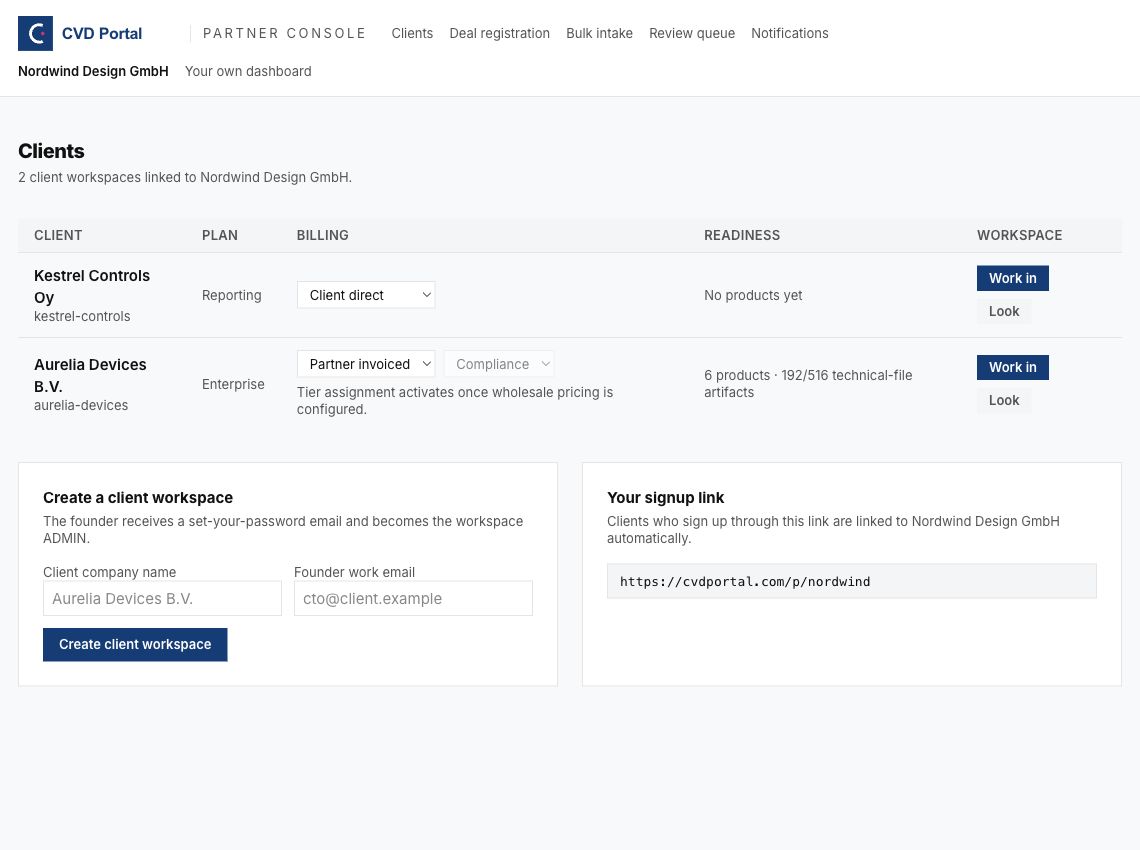
Figure 1. Select the client row before selecting the access method.
Step 2. Check a consultant session
- Find the
Partner seatbanner. - Read the client name.
- Read the signed-in email.
- Check that the banner states write access.
- Complete only the agreed task.
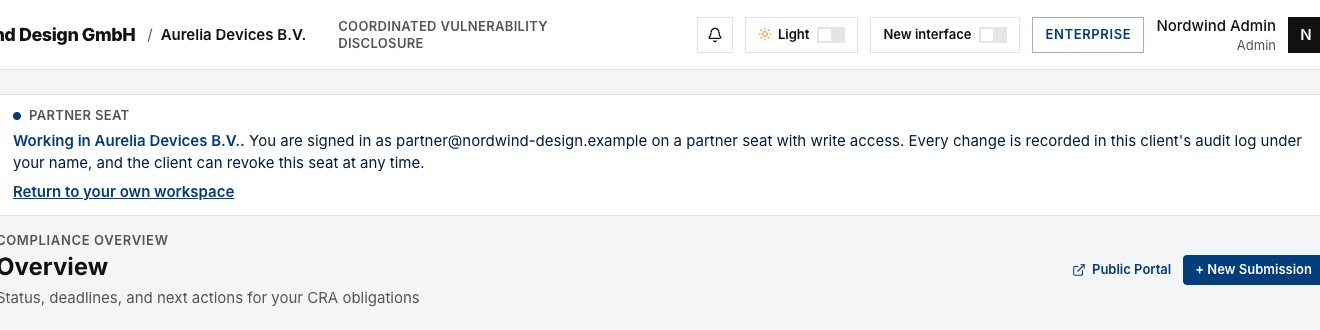
Figure 2. The client audit log records consultant changes under the partner identity.
The first use of Work in can create a partner seat. The seat keeps your partner identity. Each Work in sends the client administrators an email and an in-app notice, at most once per hour for each consultant. A seat works only while you are an administrator of your own partner company. When your role there changes, every seat you hold ends on the next request. Client billing, account deletion, and partner access controls are unavailable from a partner seat. API key creation and rotation, SSO domain verification, and SSO identity provider setup are also unavailable from a partner seat. Ask the client administrator to do these tasks.
Step 3. Return to your own workspace
- Save changes through the current panel's save control.
- Check the saved result.
- Click
Return to your own workspacein the consultant banner. - Check the partner name in the console.
- Select another client only after the previous session has ended.
For Look, use the exit control in the read-only banner. If the view expires, return to Clients and select the agreed access method again.
Work in one client at a time
Your browser keeps one session for all tabs. When you open a different client in one tab, every other tab now acts in that client. To prevent a save into the wrong client, CVD Portal locks each other tab and tells you that the tab is out of date. Reload the tab to continue with the session you have now. The partner console stays open when you use Work in from another tab, because it shows only your own partner data. It locks when you use Look, because Look is read-only. If a tab that is out of date tries to save before you see the notice, CVD Portal refuses the save and tells you that your session changed in another tab. Nothing goes into the other client.
Step 4. Ask the client administrator to review access
The following steps belong to the client administrator.
- Sign in to the client administrator account.
- Open
Settings. - Find
Partner Access. - Check the linked partner name.
- Check the current enabled or disabled state.
- Read each entry under
Partner seats. - Check the email and grant date for each seat.
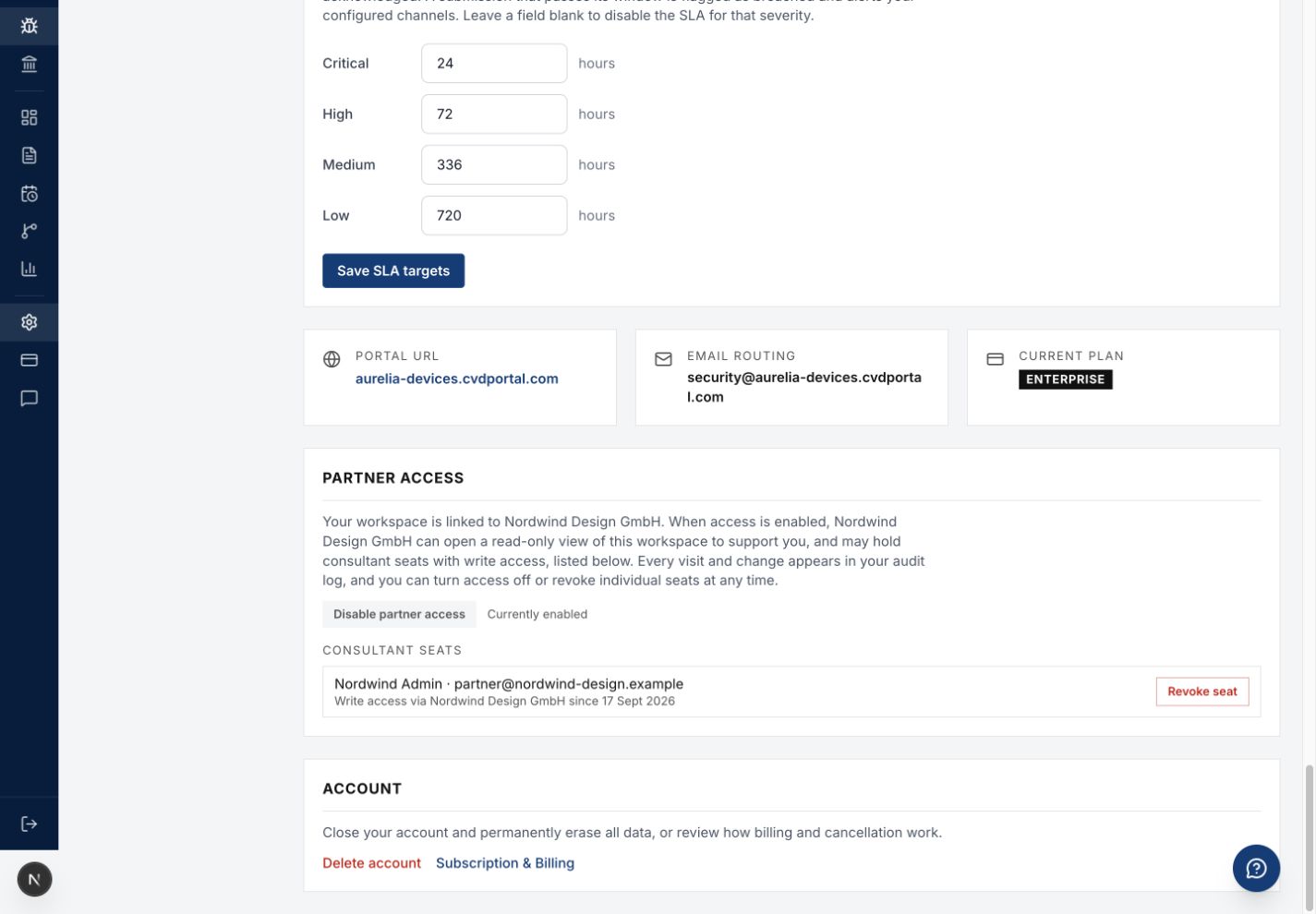
Figure 3. The client administrator reviews and changes partner access.
Revoke one partner seat
- Find the correct consultant email.
- Agree the revocation with the client team.
- Click
Revoke seatfor that entry. - Wait for the save to complete.
- Check that the seat has moved to
Revoked seats. - Reload Settings to check the saved result.
A revoked seat stays revoked. Work in refuses that consultant in this workspace, and the client audit log records each refused attempt. To give the seat back, click Allow again under Revoked seats. The next Work in of that consultant creates the seat again.
Disable all partner access
- Agree the access change with the client team.
- Click
Disable partner access. - Wait for the save to complete.
- Check that the state shows disabled.
- Reload Settings to check the saved result.
Disabling partner access blocks new entry and ends existing partner access on the next request. The client audit log records each blocked attempt to enter on a seat. The client can use Enable partner access to permit access again. Ask the client to check consent before enabling it.
When the partner account is not active
CVD Portal can deactivate a partner account, for example when the partner agreement is suspended or ends. Deactivation ends partner access in every client workspace of that partner.
- The Partner Console does not open.
- Work in and Look stop working for every client.
- An open client session ends on the next request and returns you to your own workspace.
- The client audit log records each refused attempt to enter on an existing seat.
The client keeps its data, its partner link, and its list of partner seats. The client administrator can still revoke each seat or disable partner access.
A suspension keeps the seats. When the partner agreement ends, a client transition of 90 days starts. The seats stay in place but do not work, and each client can move to direct billing or to another partner. At the end of the 90 days, CVD Portal deletes the seats. The client audit log records how many seats of the partner were deleted.
Step 5. Prepare the handover record
- Check client administrator activation and sign-in.
- Record the client workspace and product names.
- Check the saved billing mode and plan.
- List each document that still requires review.
- List each product task that remains open.
- Record export review status and any stale approval.
- Record the owner and due date for each open task.
- Check that the client can find the saved records.
- Agree whether partner access continues or ends.
- Record client acceptance of the handover.
Use the review queue manual to find remaining attention tasks. Use the billing manual to close billing questions.
Step 6. End the work session
- Save the final agreed changes.
- Return to your own workspace.
- Ask the client administrator to apply the agreed seat or access changes.
- Check the client row in Clients.
- Record the access result in the handover record.
Delete a client workspace
Delete a client from the Partner Console, not from the client workspace. Account deletion is unavailable from a partner seat.
- Open the Partner Console.
- Find the client row.
- Click
Delete clientorRequest deletion. - Read the result shown above the confirmation field.
- Type the client name exactly.
- Click the red button.
The button depends on the client state.
| Client state | Button | Result |
|---|---|---|
| Nobody at the client has activated an account. | Delete client | The workspace and all its data are deleted at once. |
| A client user has activated an account. | Request deletion | Each client administrator gets an email. The workspace is deleted after 14 days unless a client administrator cancels. |
During the 14 days, the client row shows Deletion scheduled for and the date. Click Withdraw request to stop the deletion. A client administrator can cancel the request in Settings, Account, or delete the workspace at once. If the client disables partner access, the request is cancelled.
Deletion keeps the CRA Article 14 evidence in pseudonymised form. Everything else is erased and cannot be recovered. Ask the client to export their data first if they need it.
When a client administrator deletes the workspace in Settings, Account, the next page shows only your name or logo. It tells the client to contact you about billing and to start again. It gives the security contact email of your partner company, or the email of your partner account when no security contact is set. To change the address, change the security contact email in Settings of your own workspace.
Common problems
| Problem | Corrective action |
|---|---|
| Access disabled by client appears in the console. | Ask the client administrator to check the agreed access state. |
| The client banner names another client. | Return to your own workspace. Select the correct client. |
| Look prevents an edit. | Use Work in for approved changes. |
| A save says that you opened the company with Look, which is read-only. | Return to Clients. Use Work in, then repeat the change. |
| A tab shows "This tab is out of date". | Another tab opened a different client, or the session ended. Click Reload this tab. Check the client name in the banner before you continue. |
| Partner Access controls are unavailable. | Use the client administrator account for access changes. |
| A client wants to end all partner work. | Complete handover. Ask the client administrator to disable partner access. |
Delete client and Request deletion are not shown. | The client disabled partner access. Only a client administrator can delete the workspace. |
| A revoked seat still has a page open. | Check access on the next request. Ask support if access continues. |
| The Partner Console does not open, and each client session returns you to your own workspace. | The partner account is not active. Ask CVD Portal support to check the partner account. |
Recommended practices
- Use your own account for each client visit.
- Explain audit records during onboarding.
- Save work before a workspace change.
- Agree access removal before the handover date.
- Keep open work visible to the client.
Completion checklist
- Client administrator can sign in.
- Saved product and evidence records checked.
- Billing and plan checked.
- Open tasks have owners and dates.
- Client accepted the handover record.
- Consultant session ended.
- Agreed seat or access changes checked.