How do I manage billing for partner clients?
Partners manage client billing from the Clients list in the Partner Console. Client direct billing lets the client select a subscription. Partner invoicing lets the partner assign a client tier when wholesale pricing is configured, or when CVD Portal invoices the partner manually.
Key takeaways
- Agree billing with the client before a plan change.
- Check the correct client row before changing billing.
- Client administrators manage subscriptions under Client direct billing.
- When the billing update fails, the plan and billing mode do not change.
Last updated 24 October 2026.
Screenshots use test data captured on 4 and 5 October 2026. Click a screenshot to open the full image.
Before you start
Use your partner ADMIN account. Confirm the agreed billing mode, plan, and effective change date with the client. Check whether CVD Portal bills your partner account through a Stripe subscription or by a manual invoice. Complete your billing details before you assign a paid tier.
Step 1. Check the current client plan
- Open the Partner Console.
- Click
Clients. - Find the client by company name and workspace identifier.
- Read the
Plancolumn. - Read the
Billingselector. - Record the current plan and billing mode in your project record.
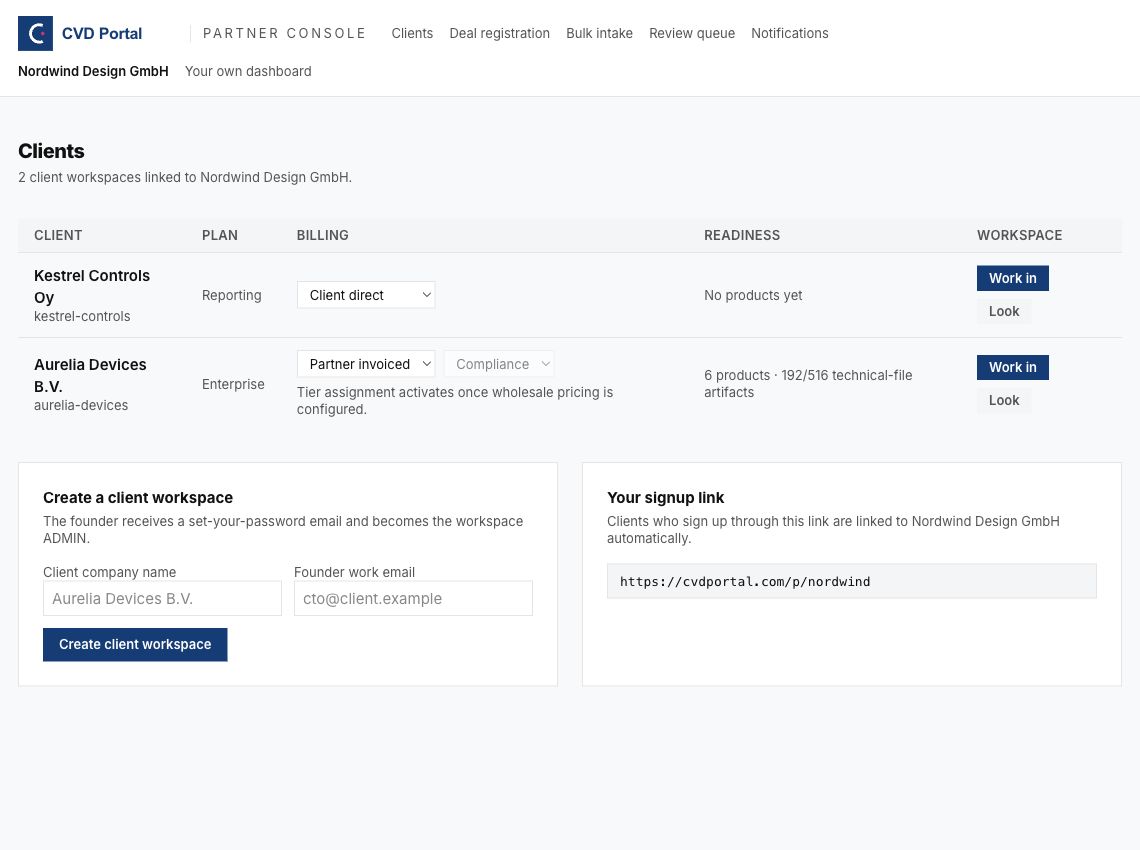
Figure 1. Check the client row before using either billing selector.
Step 2. Select the billing mode
| Mode | Payer | Plan control |
|---|---|---|
| Client direct | Client. | Client billing page. |
| Partner invoiced | Partner. | Client tier selector in the partner console. |
Client direct billing
- Open
Billing modein the client row. - Select
Client direct. - Wait for the change to complete.
- Check for an error under the selector.
- Reload
Clients. - Check the saved billing mode and plan.
- Ask the client administrator to open the client billing page.
- Ask the client administrator to select the agreed subscription.
- Reload
Clientsafter the client confirms the subscription change. - Check the displayed plan.
Changing from partner billing can return the client to Free when the client has no live subscription. Check feature access before you schedule further product work.
Partner invoicing
- Open
Billing modein the client row. - Select
Partner invoiced. - Wait for the change to complete.
- Check for an error under the selector.
- Open
Client tier. - Select the agreed tier.
- Wait for the change to complete.
- Reload
Clients. - Check the saved billing mode and plan.
| Tier selector | Plan name |
|---|---|
| Free | Free. |
| Reporting | Reporting. |
| Compliance | Compliance. |
Partner invoicing works in one of two ways. CVD Portal sets the way for your partner account.
| Invoicing | What a tier change does |
|---|---|
| Stripe subscription | Updates the quantities on your wholesale subscription. |
| Monthly invoice | Records the tier. On the 1st of each month, Stripe emails you one invoice for the previous month. Each client is charged per day on its tier, at the list price less your discount. VAT is added from your billing address and VAT number. You pay within 14 days by bank transfer or on the invoice page. No card is needed. |
Use the Partner program reference and your agreement for invoice terms.
When your Stripe wholesale subscription lapses, your partner-invoiced clients keep their plans for 30 days. Your account admins get an email with the date. To keep the plans, pay the open invoice from the Stripe email. If Stripe cancelled the subscription, contact support, and we start it again. After 30 days with no live subscription, the clients move to the Free plan. Each client keeps all of its data.
An Enterprise client can show Enterprise in the Plan column while the tier selector displays Compliance. Contact support before changing an Enterprise arrangement.
Step 3. Check feature access
- Open the client with
Work in. - Check the consultant banner.
- Open the product task that the plan must support.
- Check for a plan access message.
- Return to your own workspace.
- Ask the client administrator to check the client billing page when required.
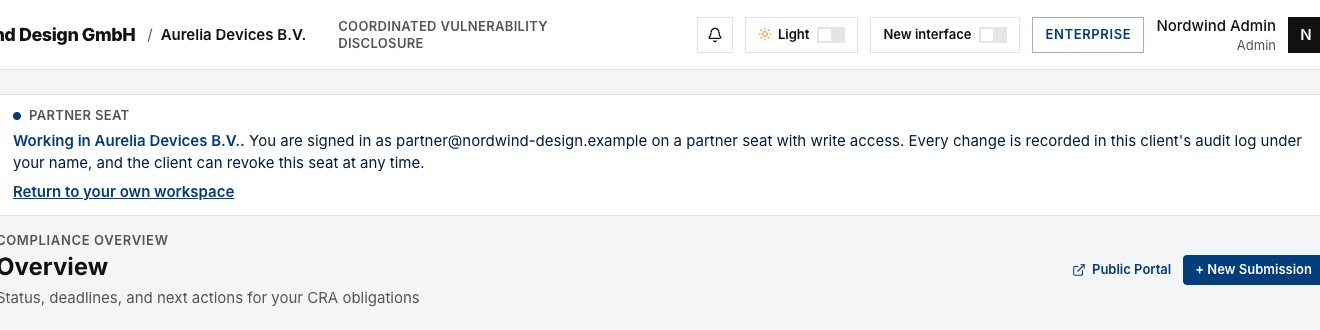
Figure 2. A partner seat can check product work but cannot manage client checkout.
Step 4. Resolve a failed change
A message under the selector can report that the plan was not changed. The billing update failed, so the client keeps its previous plan and billing mode.
- Read the message under the selector.
- Reload
Clients. - Check that the plan and billing mode show the previous values.
- If the message names a missing payment method, contact support to set up invoicing.
- For any other message, try again once. If it fails again, copy the message into a private support request.
The console shows no success message after a saved change. A change of tier to Free does not show a billing error.
Add your billing details
CVD Portal invoices your partner account for partner-invoiced clients. You can select Reporting or Compliance for a partner-invoiced client only when your billing details are complete.
- Open the Partner Console.
- Click
Billing details. - Enter the legal company name, the street address, the postal code and the city.
- Select the country.
- Enter the VAT number. A VAT number is required in the EU. Outside the EU, a tax ID is optional.
- Click
Save billing details. - Check that the page shows
Complete. - Read the result of the tax authority check under the status. If the check does not confirm the number, correct it and save again.
When Stripe cannot place the address for tax, the page shows an error and saves nothing. Check the postal code, city and country.
If CVD Portal invoices you monthly and your details are incomplete, your account admins get a reminder email. The email names the missing details and the date of the next invoice. It comes again every 7 days until the details are complete.
Common problems
| Problem | Corrective action |
|---|---|
| Client tier is disabled. | Check wholesale setup with support. |
| Reporting and Compliance cannot be selected. | Complete your billing details. |
| The client pays directly and you cannot set a tier. | Ask the client administrator to use the client billing page. |
| The client returns to Free. | Check the client subscription after changing billing mode. |
| Your clients moved to Free 30 days after a lapse email. | Set each client back to its tier. This starts the wholesale subscription again. |
| The plan was not changed because billing could not be updated. | Reload the row. Contact support if the error names a payment method or occurs again. |
| A client feature is blocked. | Check the effective plan and trial state before work resumes. |
Recommended practices
- Keep written client approval for billing changes.
- Check the saved row after each change.
- Schedule a billing change with the client administrator available.
- Record invoice questions separately from product review tasks.
Completion checklist
- Client approval recorded.
- Billing mode checked after reload.
- Client plan checked after reload.
- Required feature access checked.
- Wholesale errors resolved when applicable.
- Client informed of the result.