Producing the Auditor Evidence Package
Audience. Whoever has to answer a notified body, a customer's security questionnaire, or a market surveillance authority.
Outcome. A dated, printable evidence package showing which CRA vulnerability-handling obligations you have met, what evidence backs each one, and which harmonised-standard clauses that covers.
Why it matters. Full CRA obligations apply from 11 December 2027. The difference between meeting them and proving you met them is this document.
Time required. Generating the report takes seconds. Getting the tracker to a state worth printing is the actual work.
The flow at a glance
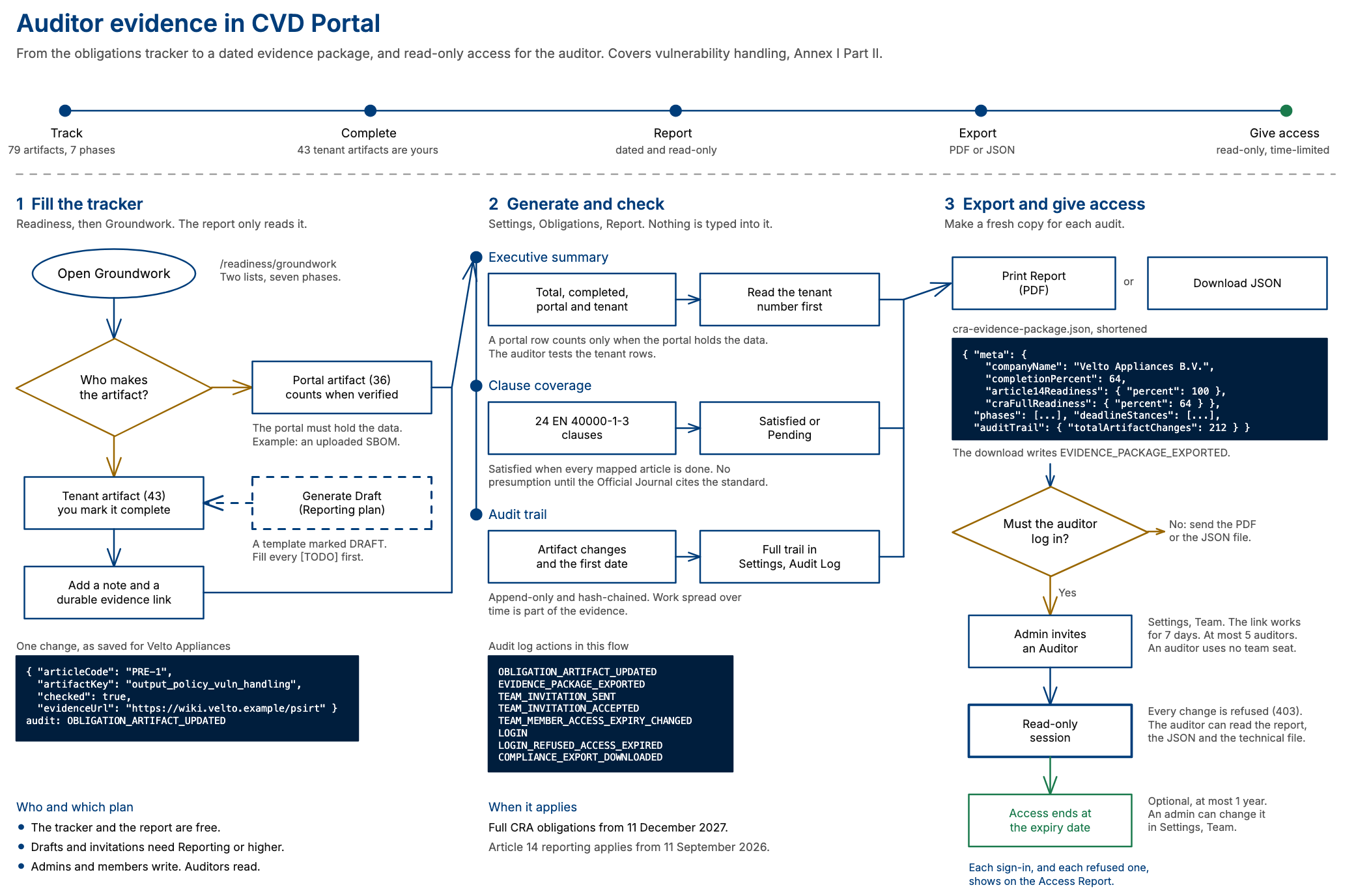
The diagram shows the whole procedure on one page, from the obligations tracker to the export and the auditor account. The steps below explain each part. Select the diagram to open it at full size. The example company is fictional.
How this fits together
The report is a read-only projection of the obligations tracker. Nothing is entered here. An empty tracker produces a 0% report, so the sequence is fill in the tracker, then generate.
Step 1. Work the obligations tracker
Open Readiness and select the Groundwork tab (/readiness/groundwork). The tracker is in two lists, and a switch at the top of the tab selects one. Preparation and intake holds the applicability, preparedness, reception and verification phases. Remediation and release holds the remediation, release and post-release phases.
The old link /settings/obligations opens the Readiness overview. The tracker is on the Groundwork tab, so do not look for a separate obligations page.
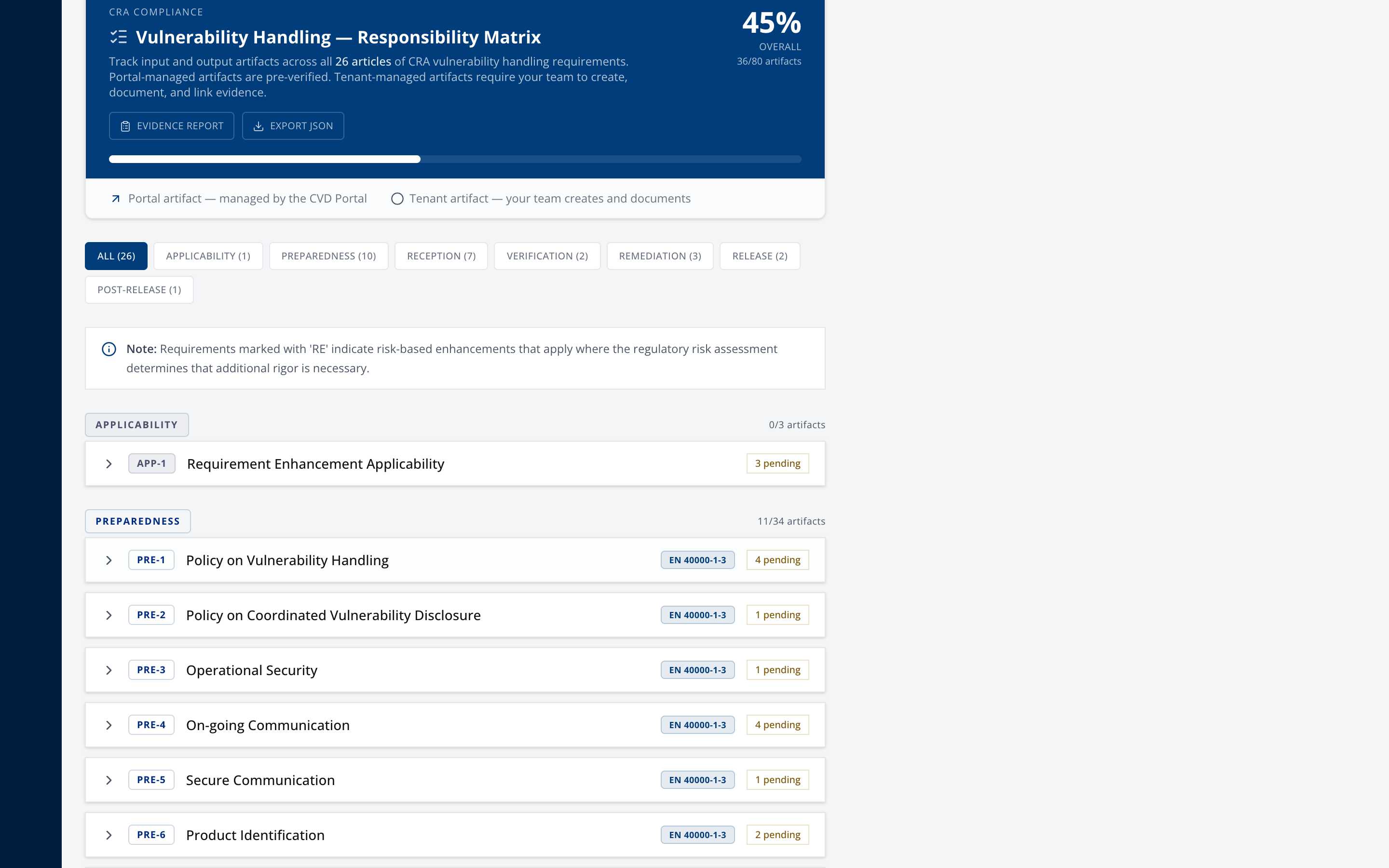
The tracker lists 79 input and output artifacts from 26 CRA vulnerability-handling articles, in seven phases. Filter by phase using the chips in each part.
Two kinds of artifact, and the distinction matters:
- Portal artifact. The platform makes it, and it shows an "Open in Portal" link. It counts as complete only when the portal holds the data, for example a published CVD policy, an uploaded SBOM or a received report. The tracker, the readiness pages, the dashboard, the evidence report and the JSON file all use this rule. The evidence report and the JSON file give the same December 2027 readiness figure as the dashboard. A row with no data shows as open and says what is missing, for example "No communications logged". To close it, set up that part of the portal.
- Tenant artifact. Yours to produce and document. These are the ones you work.
Step 2. Complete the tenant artifacts
Expand an article to see its requirements, input artifacts, output artifacts and assessment criteria.
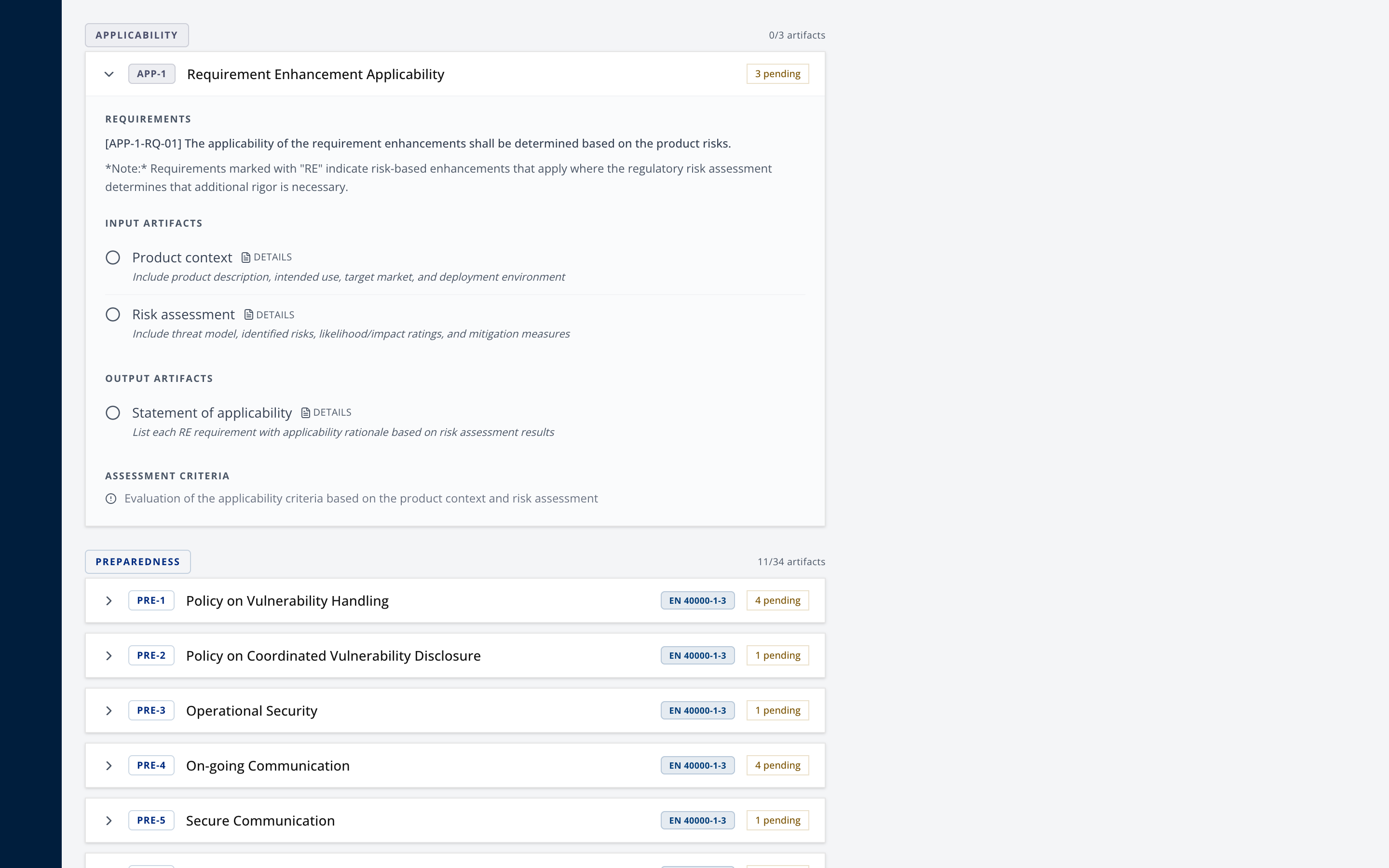
For each tenant artifact, mark it complete and open details to add notes and an evidence link. Both save as you go.
Point the evidence link at something durable that an auditor can actually open, a document management system or a wiki page. A link into a personal drive folder is not evidence.
On the Reporting plan or higher, draftable artifacts offer Generate Draft, which produces a starting point marked "DRAFT". It is a starting point. The banner tells you to review it, fill in every TODO and adapt it before marking complete. An unedited draft marked complete is a finding waiting to happen.
Step 3. Generate the evidence report
From the tracker header, select Evidence Report, or go directly to /settings/obligations/report.
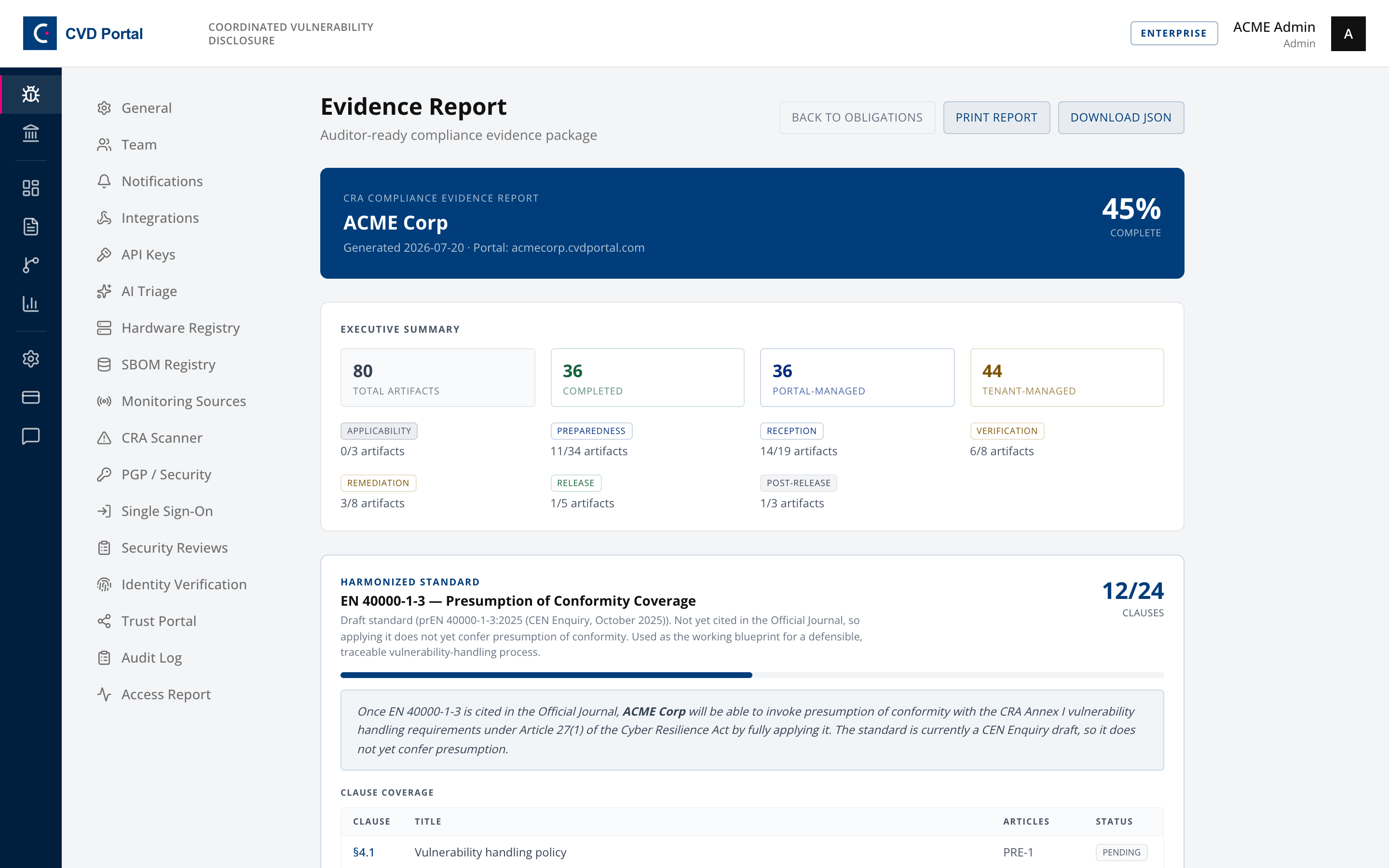
The header carries your company name, the generation date and your portal address, so the document is self-dating.
Step 4. Read the executive summary before anyone else does
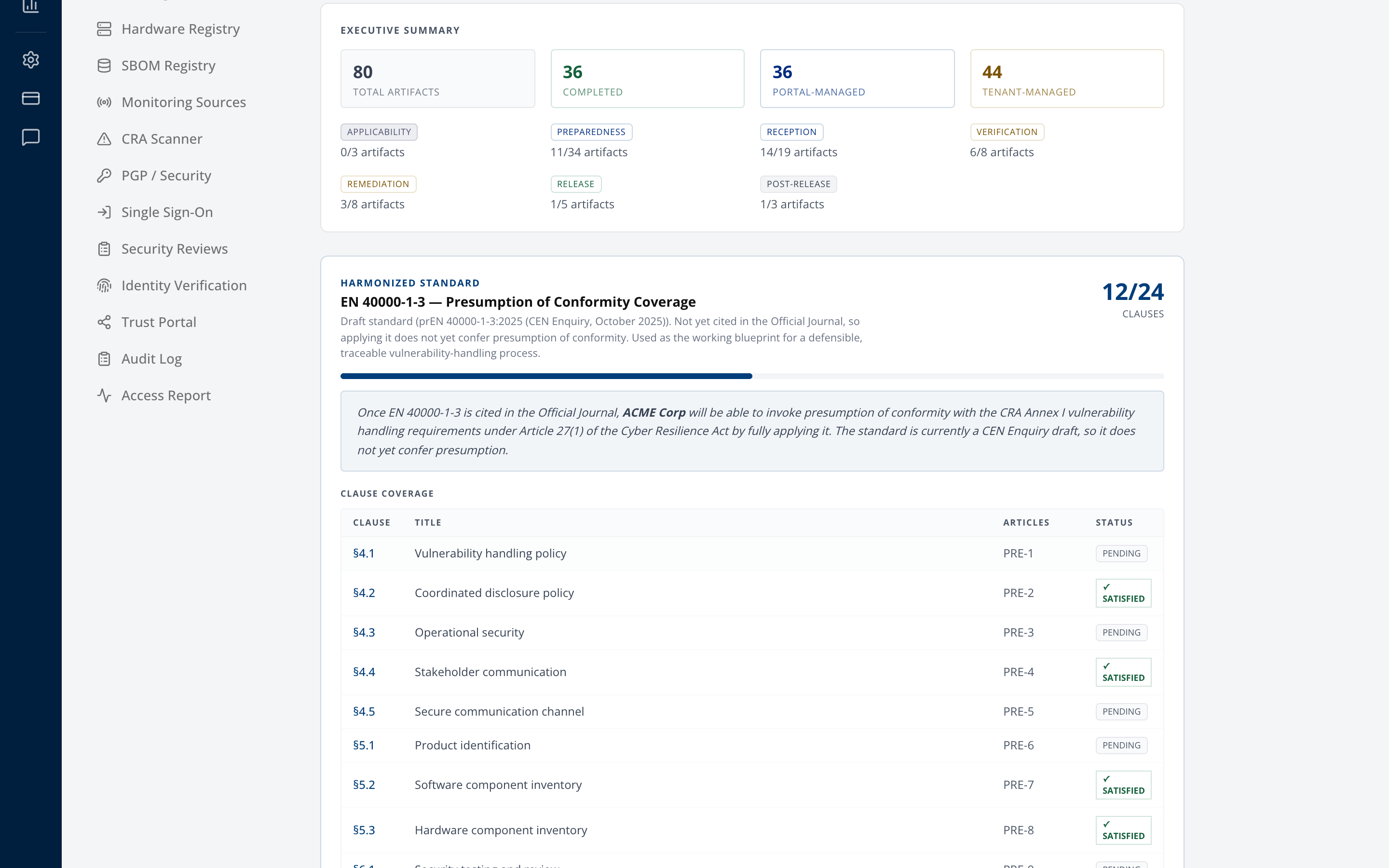
Total artifacts, completed, portal-managed and tenant-managed, then a per-phase breakdown.
The Portal-Managed and Tenant-Managed cards count artifacts, not finished work. A portal artifact adds to Completed only when the portal holds its data. An article that does not apply to your CRA roles, for example as an importer or a distributor, stays in the list with the note "Does not apply to your CRA roles", and its artifacts are not in the totals. Look at the tenant-managed artifacts first, because that is the part an auditor will test, and it is the part that reflects work your organisation actually did.
Step 5. Check the clause coverage
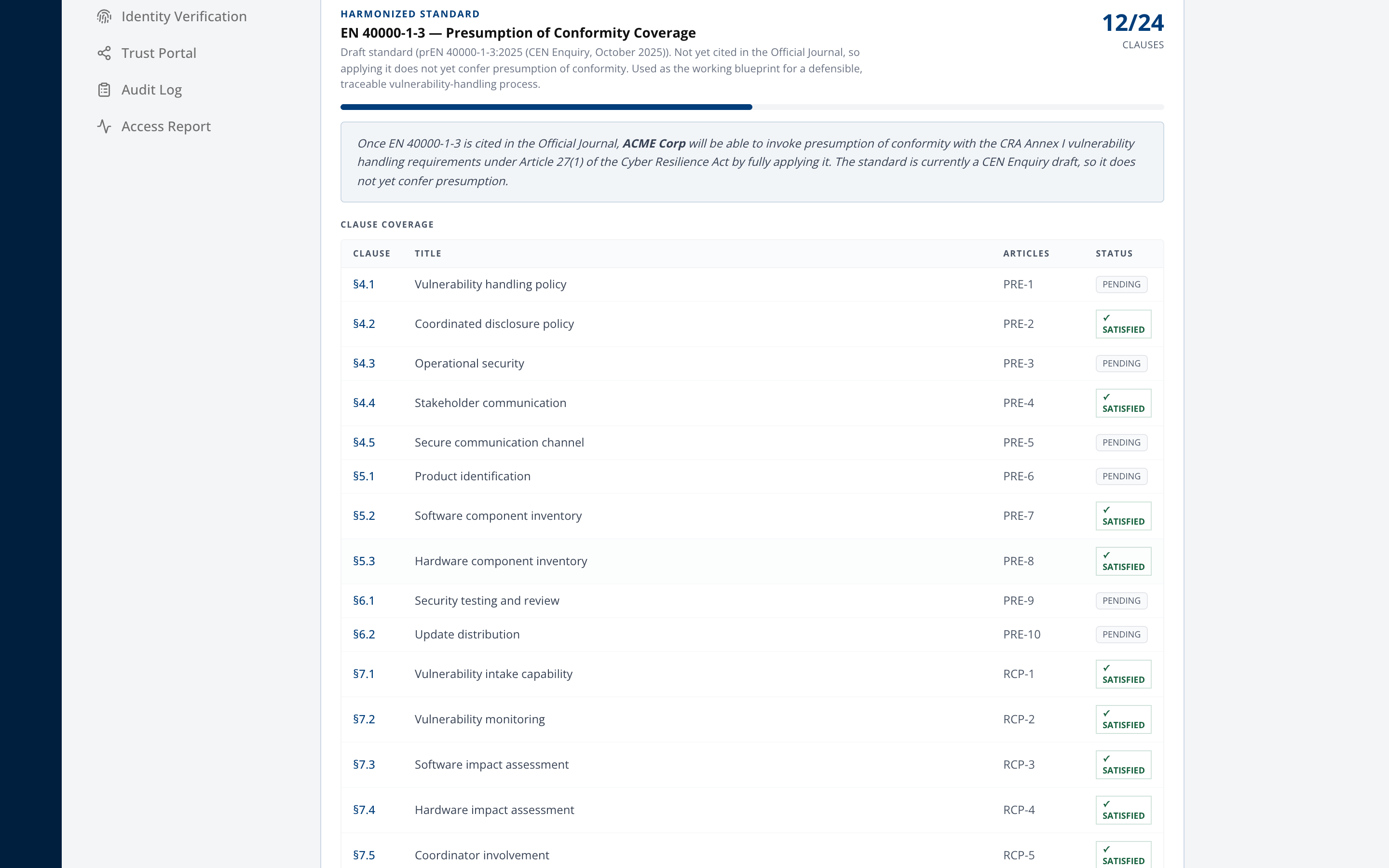
Maps your completed artifacts onto the 24 EN 40000-1-3 clauses, each marked satisfied or pending. A clause is satisfied when every article it maps to has all its output artifacts complete.
Read the caveat on this section and do not paraphrase it away. EN 40000-1-3 is still a draft. CEN has closed its Enquiry and lists it as Under Approval (CEN record). The Official Journal has not cited its reference, so applying it confers no presumption of conformity today. It is the one EN 40000-1 part whose CEN record expects a citation. Presumption for the requirements it covers starts only when the Official Journal publishes that citation. Until then, treat the coverage shown here as a defensible working blueprint. Claiming presumption you do not have is worse than claiming nothing.
Step 6. Confirm the audit trail
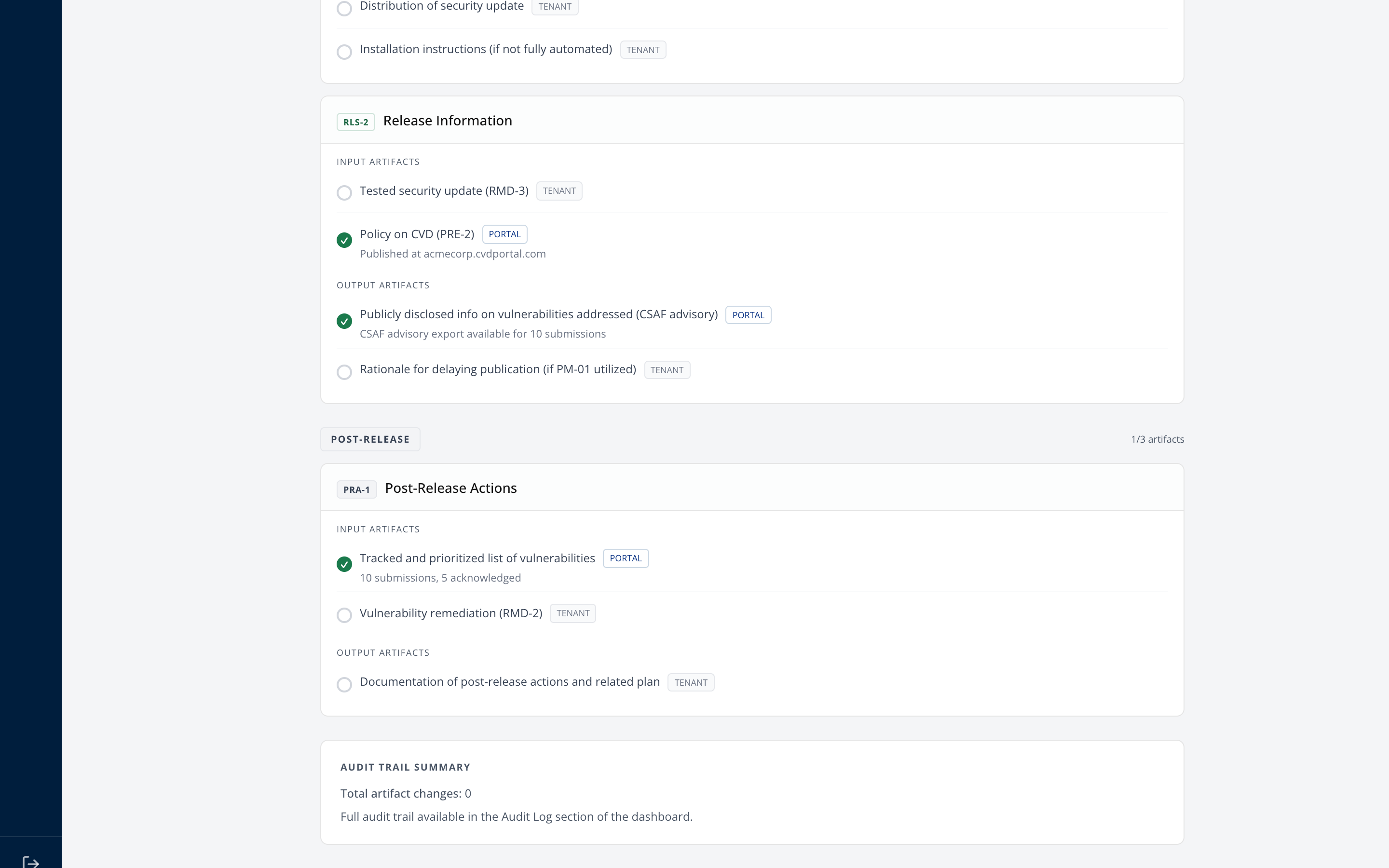
Summarises how many artifact changes are on record and when the first was made. The full trail lives under Settings, then Audit Log, which is append-only and hash-chained.
A tracker completed entirely in one sitting the week before an audit tells its own story. The timestamps are the point.
Step 7. Export
Two formats from the report header.
- Print Report produces the PDF, using print styles that drop navigation and page-break per phase.
- Download JSON produces
cra-evidence-package.json, for a GRC platform or a customer's automated intake. The file also holds the September 2026 Article 14 readiness, the December 2027 readiness, your deadline stances and the last 50 tracker changes. Each download writesEVIDENCE_PACKAGE_EXPORTEDto the audit log.
Generate a fresh copy for each audit rather than reusing an old one. The report is dated, and an auditor comparing a stale package against a live system will find the gap.
Step 8. Give the auditor read-only access, if needed
Some auditors want to look at the live system. Give them an auditor account, never an admin account.
- Open Settings, then Team, and select Invite Member. Only an admin can send an invitation, and invitations need the Reporting plan or higher.
- Enter the auditor's email address. Select the role Auditor (Read-only, time-limited).
- Set Access Expires to the last day of the audit. Access ends at the end of that day, UTC. The date must be within one year. Leave it empty only if the auditor must keep access.
- Select Send Invitation. The link works for 7 days.
The auditor can read the dashboard, the evidence report, the JSON package and each product technical file. The admin-only product tabs stay hidden. Every change is refused. A company can have at most 5 auditor accounts, and they use no team seat. Each sign-in shows under Settings, then Access Report. A sign-in refused after the end date shows there as "Refused, access ended".
To change the end date, an admin selects Change end date on the auditor's row in Settings, then Team. The new date must be within one year. A later date than the current one needs the Reporting plan or higher. The change signs the auditor out. See Team roles for all roles.
Completion checklist
- Every tenant artifact reviewed, not just the easy ones
- Completed artifacts carry notes and a durable evidence link
- Generated drafts edited and adapted, with no TODO left
- Per-phase breakdown reviewed, with weak phases understood
- Clause coverage reviewed, and the presumption caveat understood
- Audit trail shows work spread over time
- Report exported as PDF, JSON, or both
- A copy filed with the date of the audit it supports
- If the auditor logs in, an auditor account that expires at the end of the audit
Common questions this answers
| Question | Where it comes from |
|---|---|
| Do you have a documented vulnerability-handling process? | Preparedness phase artifacts |
| How do you receive vulnerability reports? | Reception phase, plus your public portal |
| How do you verify and prioritise? | Verification phase, plus the triage trail in SOP-05 |
| How do you decide what to fix? | Remediation phase, plus recorded remediation decisions |
| Can you prove any of this happened? | Audit trail summary, plus the append-only log |
What this report is not
It covers vulnerability handling, being Annex I Part II. It does not cover product conformity, the Annex I Part I essential requirements, classification or the Declaration of Conformity. Those live per product and are covered in SOP-02, exported from the Conformity tab as the technical file.
An auditor asking about a specific product wants that export. An auditor asking about your process wants this one.